Hi,
I finished a betaversion of my first usable Usine add-on:
"AoN Random"
Please check it out and let me know what you think - most of you know a lot more about Usine, so feel free to suggest whatever you think is missing.
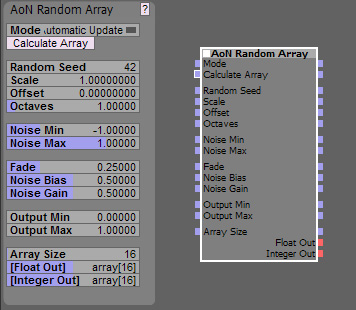
This is the interface:
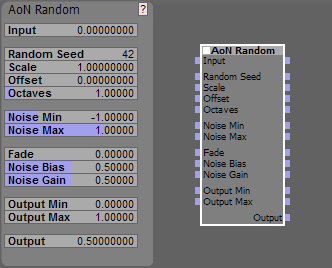 Initial Beta Documentation:
AoN Random
Initial Beta Documentation:
AoN Random is an add-on to create pseudo-random sequences of control events with a lot of control over the result.
Pseudo random because it will create the same sequence for the same input numbers, which is often preferable over real randomness, since you can repeat a certain sequence.
It is based on some shaders I do for 3D-graphics, but I hope you will find it helpful for audio as well - I tried to adapt the underlying concept to be useful in this area.
Let's look at the controls:
Input:
Here you plug in the values that the noise is based upon - without this, nothing will happen.
Usually you will use some kind of timing information, in my tests I mostly used a MasterSync nodes "tot ppq" output which I multiplied to get a fitting range (Edit: in the latest version you can use the scale parameter for this). I highly recommend using an oscilloscope on the Output to visualize what's going on.
I decided to not build in timing tools inside of the node for now to not waste time on things already covered in Usine and because instead of time, you can also plug in the output of a sequencer, a LFO or any other generator that produces continuous streams of data. Just make sure the values span a large enough range (or multiply it with "Scale") since AoN Random in essence creates a random value per 1 unit of input, so a 0-1 input will not do much, a 0-10 or 0-100 input will be more interesting.
NEW
Random Seed:
This was first introduced in AoN_Random_Array, but I liked the feature and decided to integrate it in AoN_Random as well.
For each integer value of Random Seed, a completely different internal table of random values is created (9973 of them in fact).
So even for pretty long loops, you shouldn't need to change this in a performance. Still it can be convenient to change the value to instantly get a different sequence of values for instance, if you don't use time, but a sequencer as input and you want to try out different patterns for a fixed range of input values (for an alternative, see the Offset parameter below).
Since the internal sequence is generated based on this value only, you should get exactly the same results (for repeatability) when using the same settings.
The creation of the random number sequence can take a bit of CPU, so you shouldn't drive this at audio or even control rate. And you may never have to change it at all if you are happy with the other controls possibilities.
If performance is a concern, try changing the area you see with Offset instead.
- Random Seed changes the underlying noise values completely, so no smooth interpolation is possible. If you need that, I'd recommend fading between two AoN Random nodes with different Random Seeds and only change Random Seed when the influence of one of them is at zero (so the jump can't be heard).
NEW
Scale:
This parameter was also first part of AoN Random Array, but I think it makes working with AoN Random easier as well, so here it is.
A value of 1.0 (the default) will use your input values directly, smaller values will give you a zoomed in view on the noise where details are more stretched out, while larger values at one point will give you something that looks more like typical randomness, since you can no longer see the interpolation.
You could also say, that smaller values "slow down" the noise and larger Scale values speed it up (if you feed in time that is).
Offset:
This is basically a convenience input: It's value is added to the Input value on every level of the noise.
I realized in the meantime that it isn't really necessary, since Usine adds values automagically if you have several connections to the same input, but it's still convenient if you only want to have a static Offset to see a different noise area.
The idea is, that for instance you have a Master Sync node feeding into the main Input, and then something else to distort the very even flow plugged into Offset, like a LFO or another AoN Random node. This allows you to easily break up the initially relatively regular distance between the random values, giving you a more random feel.
See the included AoN Random Example.wkp for a - well - example

Offset has no impact on performance.
Another, more basic use is, to use Offset as a way to have several noises fed by the same input but still have every one generate a different sequence, simply be offsetting each node by some (not too small: 0 - 9973 is the range that makes sense) number.
Octaves:
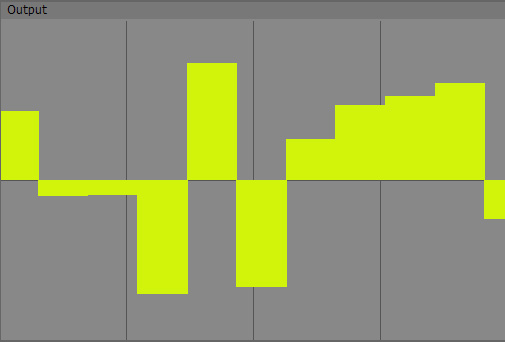
If set to 1, only a basic sequence of random numbers wil be created, basically one for each 1 unit of input. If set to 2, a second layer of randomness will be added, at half the intensity and half the size (this is the reason to call it "Octave"). This results it pseudo-fractal detail.
A very basic output of AoN Random with 1 Octave (Fade set to 0):
And with 3 Octaves:
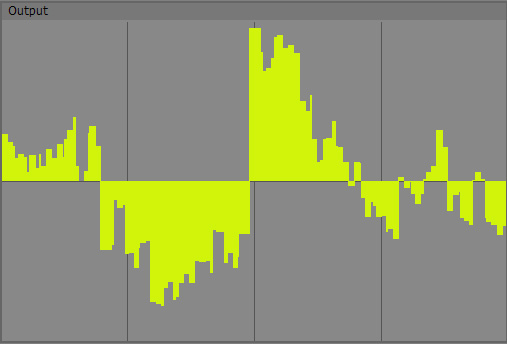
This is not exactly the same area from the noise, so the features are not identical, but you can clearly see how the two additional octaves add "local" detail to the larger blocks of the first octave.
I've limited Octaves to 16, since IMO it makes not too much sense to go higher - if you should find this being a limitation for your use, please let me know.
The reason why I limited it is, that for each octave, the algorithm is recalculated, so for 16 octaves you have basically 16 times the CPU load. So only use as many octaves as you really need, otherwise you waste resources.
In most implementations, octaves are integers. But I always found this limiting and the sudden changes unwelcome in graphics as it would be in audio. Therefore, in AoN Random you have a floating point value to dial in octaves and they fade in and out smoothly. This also makes it possible to control the amount of detail in the noise with other controllers.
Noise Min & Noise Max:
Internally with one octave, the noise is always normalized into a range between -1 and 1. Now when you use more octaves, it is possible that some parts go out of this range and are therefore cut-off. With Noise Min and Noise Max you can open this range up a bit to get the full spectrum of the noise created.
But sure you can also use it as a creative tool: For instance, if you set Noise Min to 0.0, the lower part of the noise will be cut off completely leaving only some islands where you get parameter changes. If you would set Noise Min to 0.5, it would be even more extreme and only very sparsely you would get output. This is great if you want an every-now-and-then stutter rather than a continuous noise.
Here is an example of a noise similar to the 3 octave setting above, but Noise Min set to 0.0 to cut off everything below (the oscilloscope was adjusted as well to reflect the change):
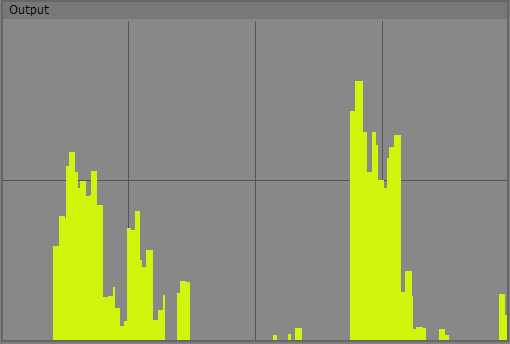
So while this isn't the most important parameter, sometimes it will come in handy.
It has no influence on performance
Fade:
Now to the fun part
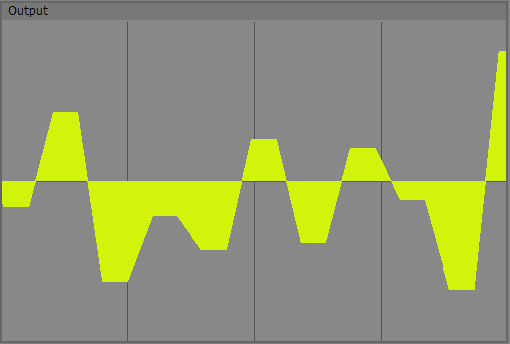
Fade is a control that allows you to interpolate between the random numbers.
At a value of 0.0, no interpolation takes place, you get a "Sample and Hold", hard stepped result like in the examples above.
For values higher than zero, you get a slope between the steps.
If you set Fade to 0.5, you get 50% slope and 50% plateau, Fade at 1.0 will give you slopes only, which will produce linear ramps with no plateaus at all.
This first example shows AoN Random with 1 octave and a Fade-value of 0.5:
Then I turn Fade up to 1.0 - which results in "nothing but interpolation":
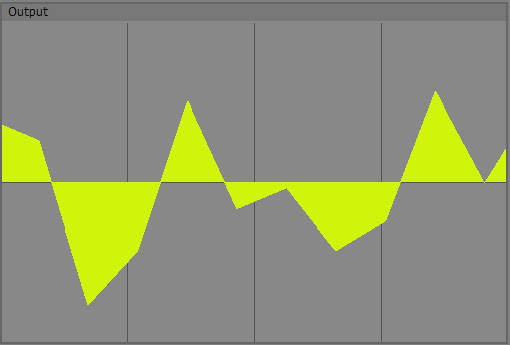
Finally, I turn Octaves to 3, now I get interpolated, detailed noise:
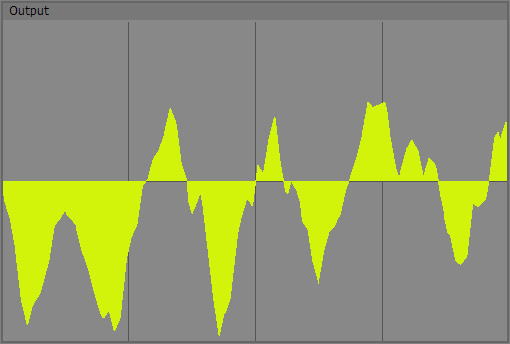
Fade should have a very very tiny impact on performance.
Noise Bias & Noise Gain:
Now this is all fine and dandy, but sometimes you may not want linear interpolation.
This is what Bias and Gain are for.
Maybe it's important to say, that this isn't exactly what the words Bias and Gain are used for in Audio usually, but in graphics this is a rather common use and I took the words from there.
So what is it?
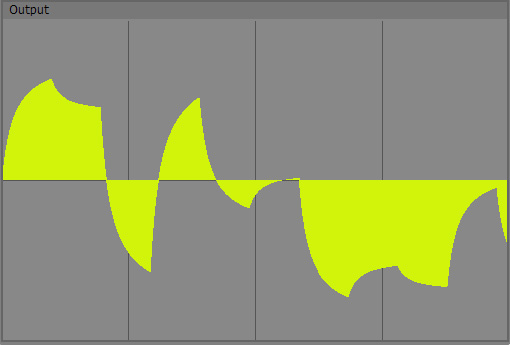
Bias will move the values of the slope in a curved fashion more to the upper or to the lower end (so it only has a function if Slope is > 0).
Important to remember is, that the neutral value here (as for Gain) is 0.5!
At a value of 0.5, nothing will happen, like in all the above examples.
Below 0.5, the slope will be bent towards lower values, above 0.5 it will bend towards higher values - in essence forming shark-fin like curves.
A one-octave noise with Noise Bias at 0.15:
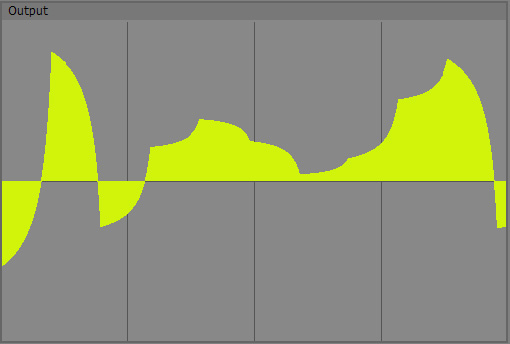
And the other way around, Noise Bias at 0.85:
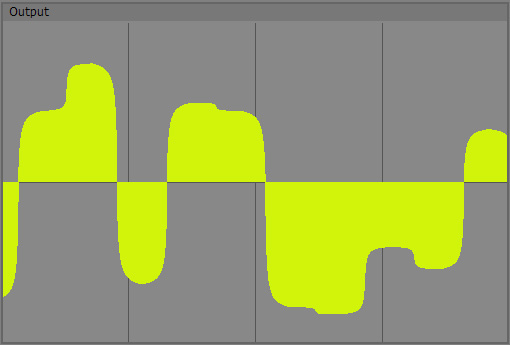
Noise Gain is like two Noise Bias split in the middle and one inverted, creating mirror-like roundings at the bottom and top at the same time.
Again, the neutral value is 0.5. Below that, the slope will be rounded off at the bottom and the top outwards, giving you a rather smoothly interpolated result, especially at rather low values like in the following example:
Noise Bias back at 0.5 and Noise Gain at 0.05:
Now with values above 0.5, Noise Gain creates the opposite, a kind of inward-bent s-curve where you get an almost-plateau between the main noise values.
Here I used again Noise Bias at 0.5 and Noise Gain at 0.95:
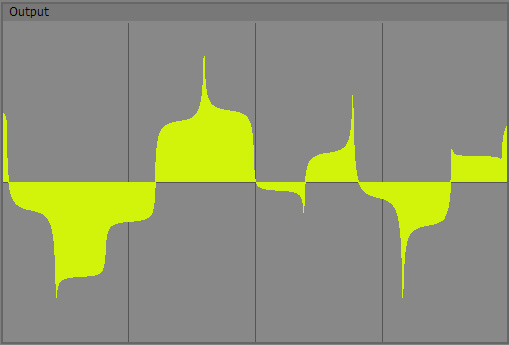
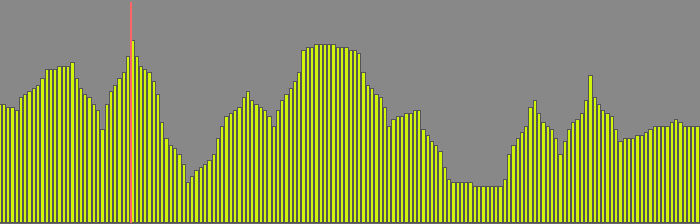
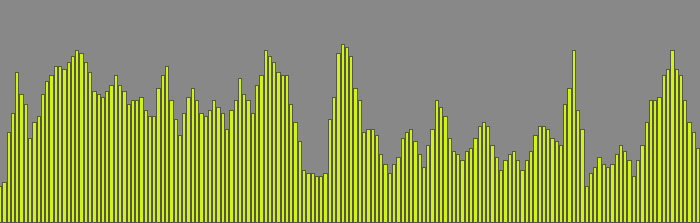
All these values, Fade, Bias, Gain etc. can be mixed to create a broad variety of results, here I have 3 octaves, Fade at 0.5 and Bias and Gain at 0.05. I made the oscilloscope draw faster and the window wider so you can hopefully see the finer detail:
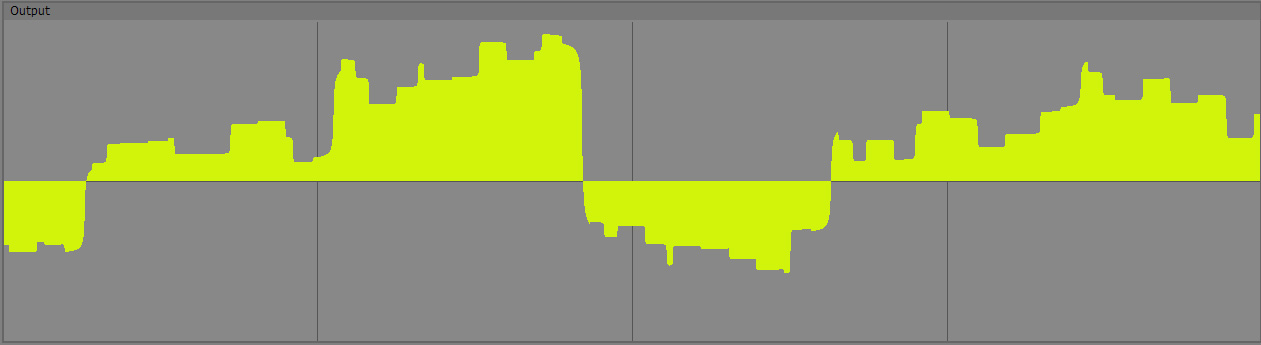
Bias and Gain are very light to calculate, so not much of an impact.
Output Min & Output Max:
We're mostly done now, but these two controls allow you to adapt the output to your needs conveniently.
They spread the internal values to a range of your choosing. So if you need control values between 0 and 1, you would set Output Min to 0.0 and Output Max to 1.0. For a range of -48 to 66, Output Min would be -48 and Output Max 66.
I guess you get the drift

Basically this spares you some extra nodes.
A nice use of these Min and Max values is, to connect their outputs with the min and max inputs of an oscillator or step module to automagically set the range to the same values as the AoN Random output.
See the latest examples for examples
Min and Max has no impact on performance.
Okay, that's basically it.
You can download the
updated add-ons below with some also
updated basic examples.
Older projects you did may need you to adjust the outputs, since I added parameters.
I would recommend to extract them to your user folder keeping the AoN_Usine folder intact, so you can easily find the add-ons.
Updated 6.2.2011
http://www.screendream.de/AoN_Usine/AoN_Usine.7z
If you don't have 7zip, it's about time to get it
http://www.7-zip.org/
Cheers,
Thomas
 this is growing slowly


 , of course, ideally we'll want both but...